 kukkiri
Windows guide
The Windows installer contains everything kukkiri needs: Python, PyTorch, TensorRT and ffmpeg. You do not need to install anything else apart from an up-to-date NVIDIA driver.
Just want to get going? See the quick start.
Requirements
- Windows 10 or 11, 64-bit
- An NVIDIA GTX 16-series / RTX 20-series or newer GPU, with driver 580 or newer (nvidia.com/drivers)
- About 6 GB of free disk space, plus room for the restored videos
Install
Download kukkiri-setup.exe (about 3 GB; it always holds the latest release) and run it. It installs for your user only, so it does not ask for administrator rights. If Windows SmartScreen says it protected your PC, click More info, then Run anyway.
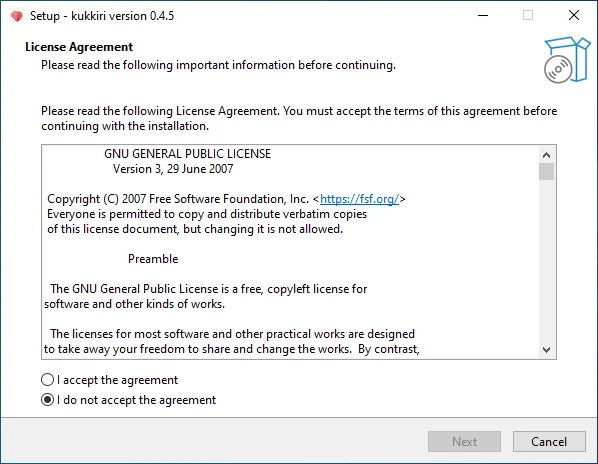
Accept the license (GPL-3.0) and click Next.
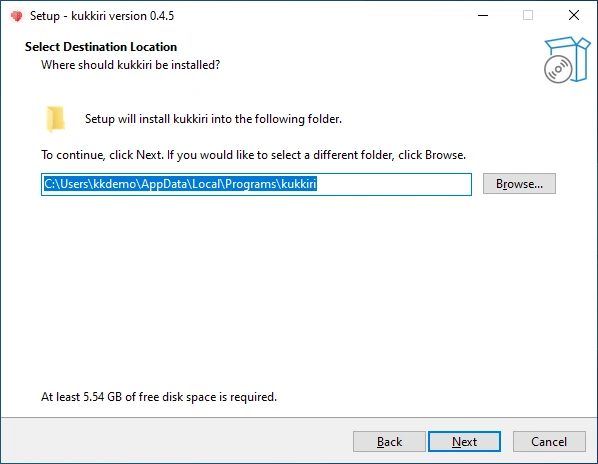
kukkiri installs into %LOCALAPPDATA%\Programs\kukkiri. Keep that folder unless you have a reason to change it.
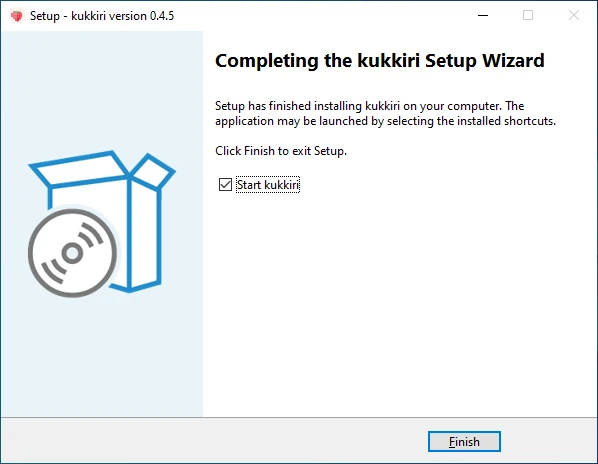
On the next page you can add a desktop shortcut. Then click Install. Unpacking takes a few minutes. When it finishes, leave Start kukkiri ticked and click Finish.
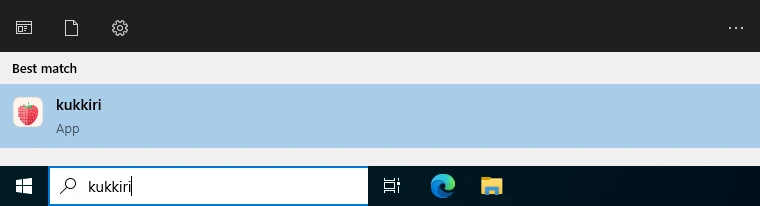
Later, start kukkiri from the Start menu.
The window
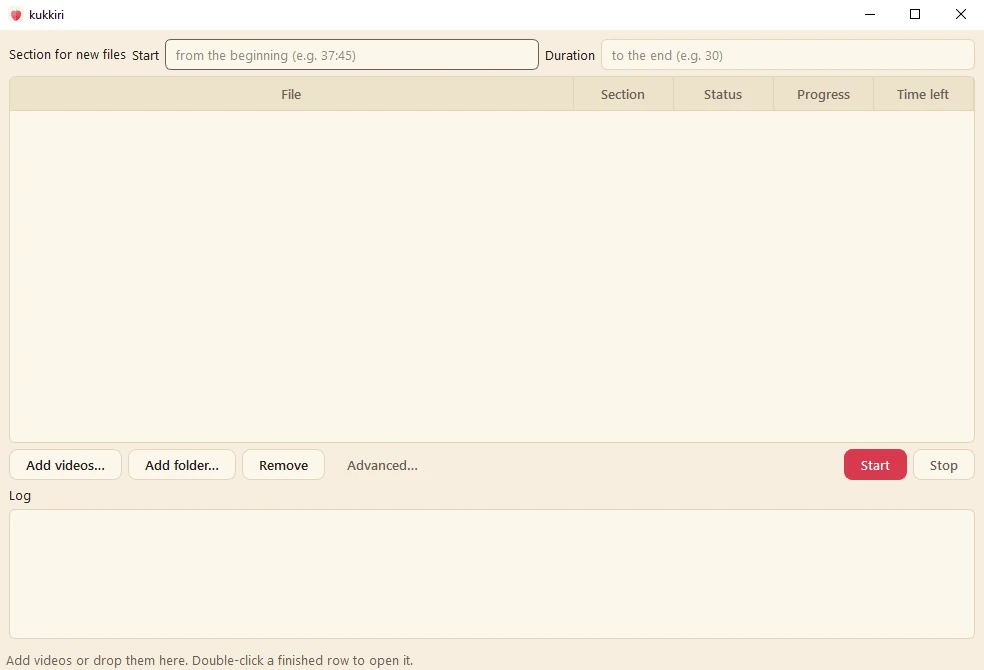
kukkiri works through a queue. You add videos, press Start, and they are restored one after another. Each restored video is saved as a new file next to the original; the original is never changed.
Add videos
Click Add videos… and pick one or more files, or drag them onto the window. Add folder… adds every video in a folder and its subfolders; files kukkiri restored earlier are left out.
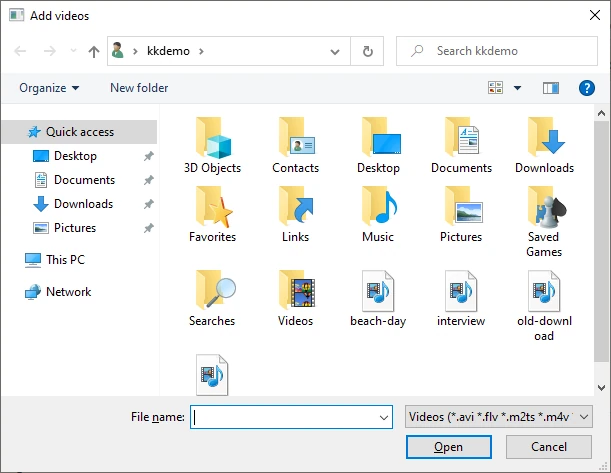
kukkiri reads MP4, MKV, MOV, AVI, WMV, TS, M2TS, MPG, M4V, WebM and FLV. Formats the GPU cannot decode directly are converted to MP4 automatically before restoring.
Each video becomes a row in the queue.
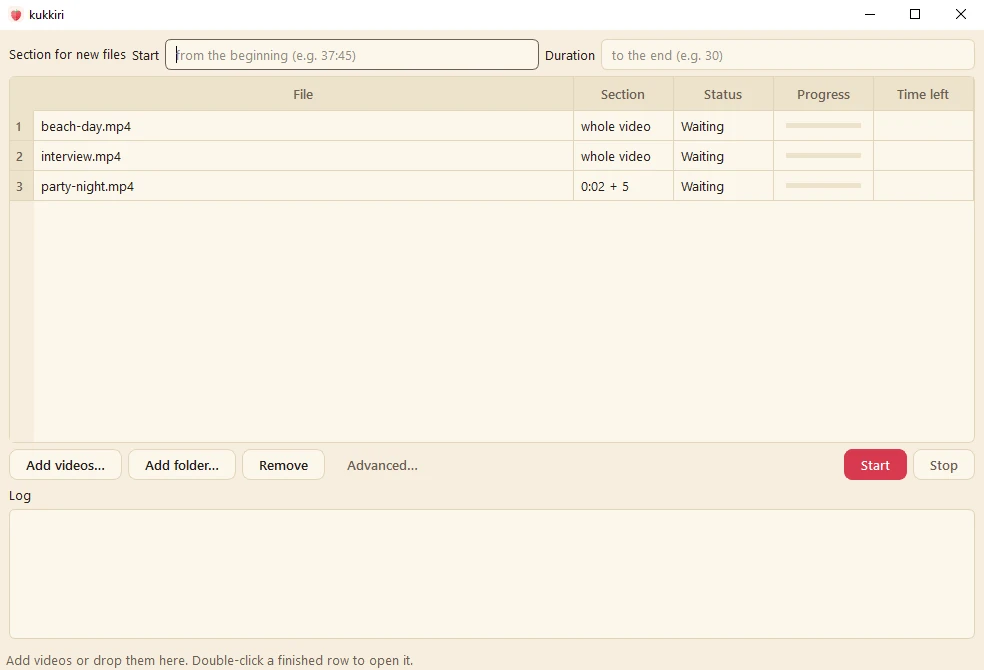
To take a video out of the queue, select its row and click Remove.
Restore only part of a video
To restore only a section, for example to try kukkiri on a short scene first, fill in Start and Duration
before adding the video. Both take seconds, mm:ss or hh:mm:ss. Leave Duration empty to restore from Start to
the end.
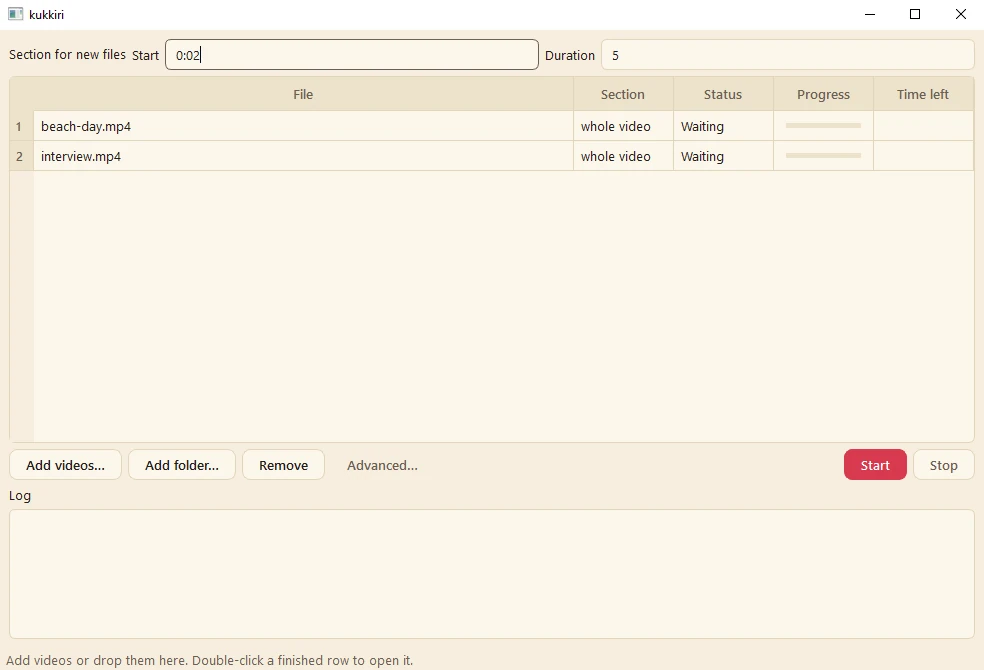
The values apply to every video you add while they are set. The Section column shows what each row will restore.
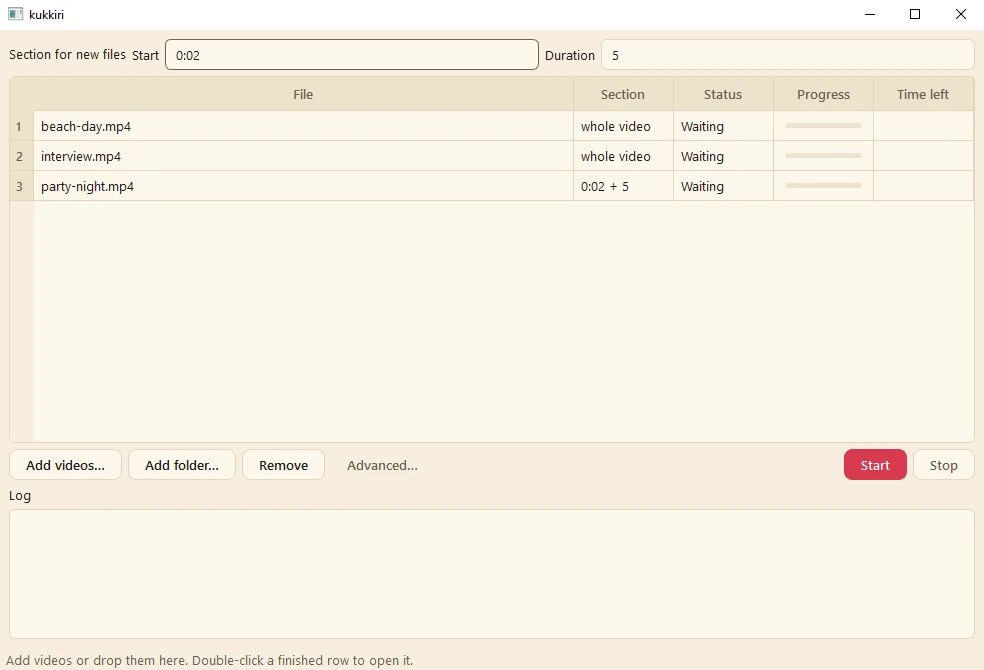
Clear the two fields again before adding more whole videos.
Advanced
Advanced… shows two more settings, which kukkiri remembers:
- Weights folder: where the models are kept, by default
%LOCALAPPDATA%\kukkiri\weights\<version>. Change it only if you keep the models somewhere else. - Output folder: where restored videos go. Empty means next to each original.
Restore
Click Start.
The very first time, kukkiri downloads its models (about 240 MB; it asks first) and then prepares them for your GPU. This preparation takes 10 to 20 minutes, during which the first video stays at Starting with no progress. It happens once; every later run starts within seconds.
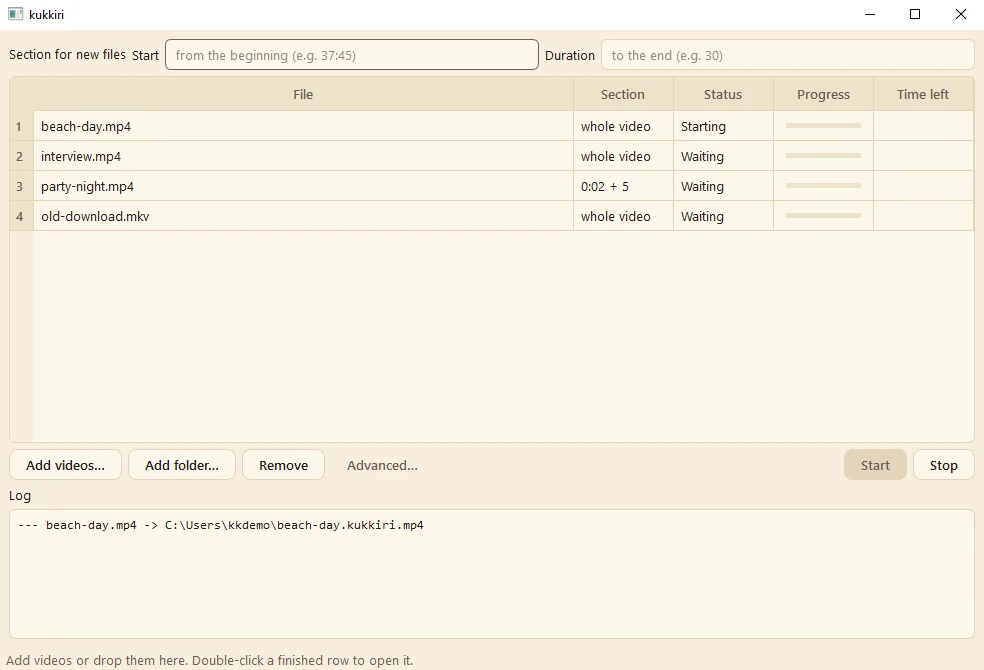
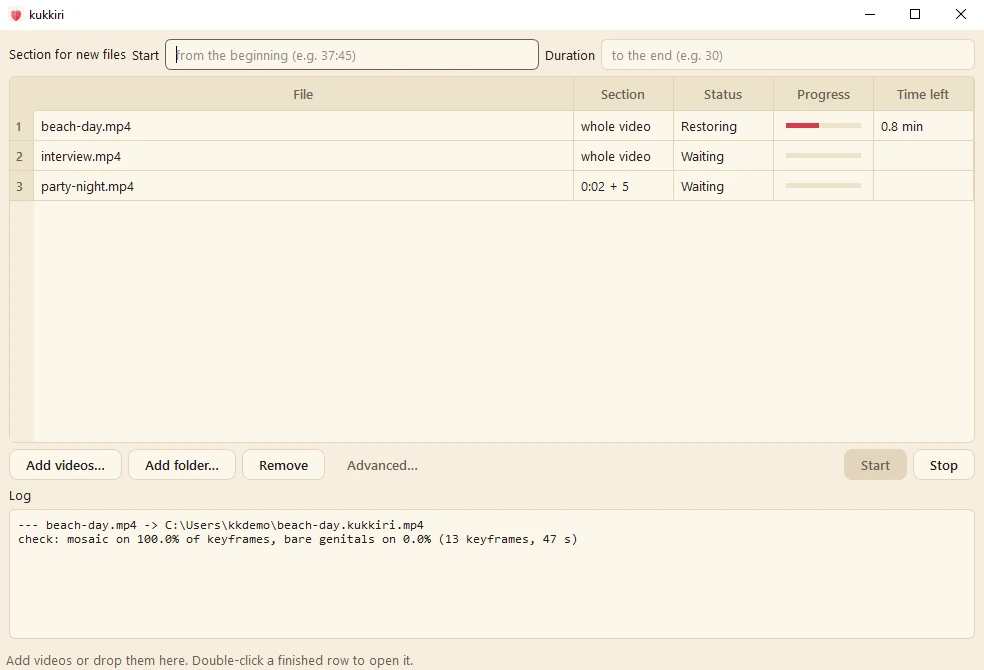
Before restoring a video, kukkiri checks a few frames from across it. A video that is not censored, or one that another tool has already "decensored" into smooth shapes, is skipped with the reason in its Status.
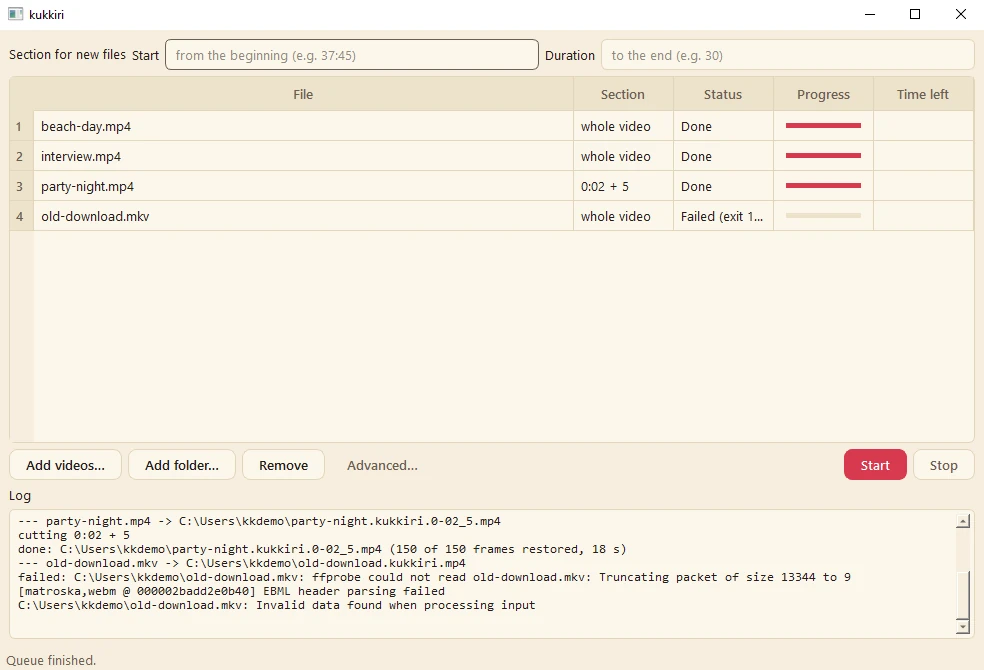
While a video is restoring, its row shows the progress and the time left.
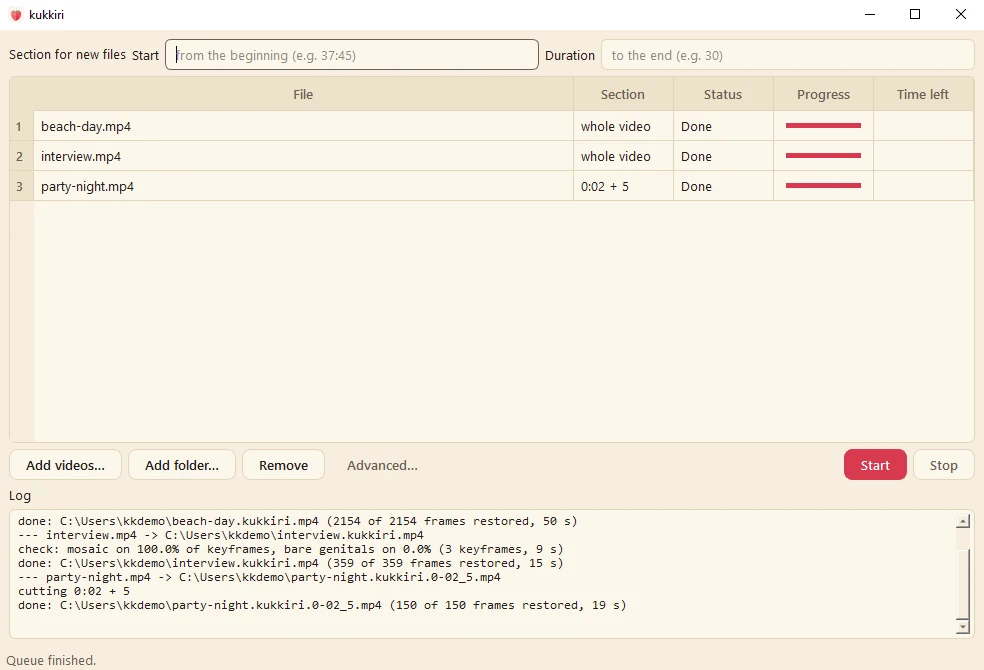
When the queue is done, every row says Done and the status bar says Queue finished. Double-click a finished row to play the restored video.
The restored files
Restored videos are named after the original with .kukkiri added: beach-day.mp4 becomes beach-day.kukkiri.mp4.
A section also carries its start and duration, so party-night.mp4 restored from 0:02 for 5 seconds becomes
party-night.kukkiri.0-02_5.mp4.
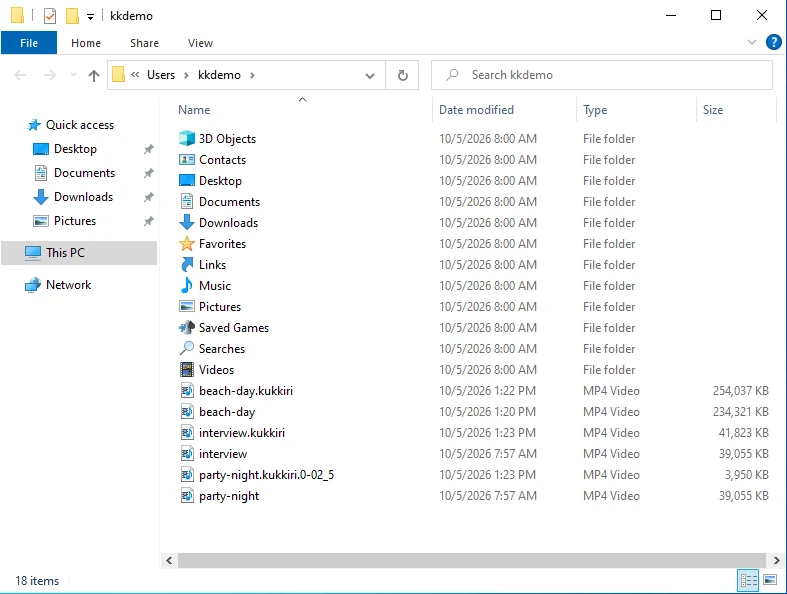
The restored video keeps the original's resolution, frame rate and audio. Pixelated faces are recognised as such and always left as they are.
Stop, and files that fail
Stop ends the video being restored, deletes its unfinished output and pauses the queue. The rest of the queue stays Waiting; click Start to continue.
If a file cannot be read, for example because it is damaged or not really a video, its row says Failed and the Log below the queue explains why. The queue carries on with the next video.
Command line
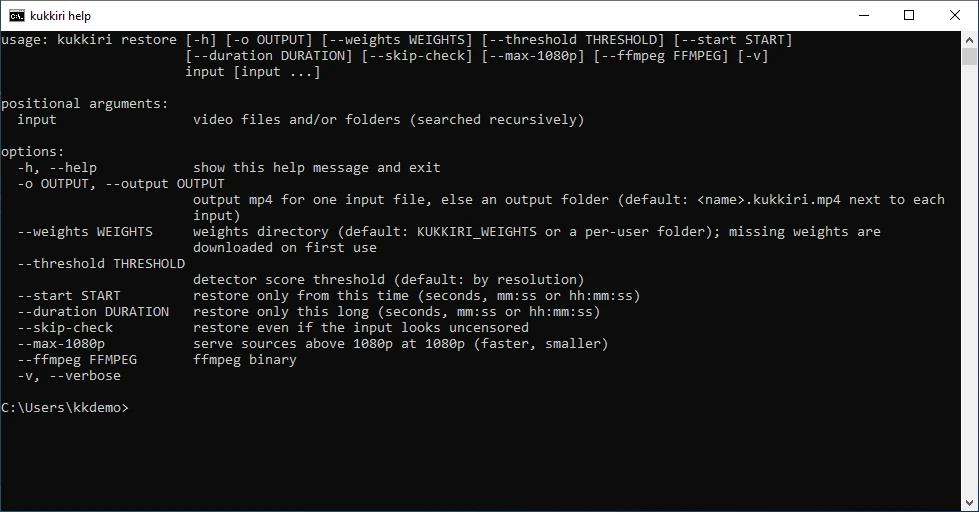
The installer also includes the command-line version, kukkiri.cmd, in the install folder. Open a Command Prompt
and run, for example:
"%LOCALAPPDATA%\Programs\kukkiri\kukkiri.cmd" restore "C:\Videos\beach-day.mp4"
It uses the same models as the app, so nothing is downloaded or prepared twice. restore --help lists every option;
the README explains them.
Uninstall
Open Settings → Apps, find kukkiri and click Uninstall. This removes the program; your restored videos
are not touched. The models and their GPU files stay in %LOCALAPPDATA%\kukkiri, so a reinstall does not download
them again. Delete that folder to remove them as well.
Problems
- "no NVIDIA GPU found" or "driver … which kukkiri cannot use": update the NVIDIA driver to 580 or newer from nvidia.com/drivers and restart.
- "(GPU) is not supported": kukkiri needs a GTX 16-series / RTX 20-series or newer card.
- The first video sits at Starting for a long time: that is the one-time GPU preparation described above.
- Anything else: the Log panel has the details. Please include it when you report an issue.